When you want a planner that moves with you across devices, Canva offers a surprisingly powerful set of tools that let you design, customize, and share a digital organizer without needing any coding skills. If you’ve ever asked yourself how do you create a digital planner in canva, the short answer is: start with a blank canvas, choose a template that resonates with your workflow, and then layer in the exact elements you need— calendars, to‑do lists, habit trackers, and more. The platform’s drag‑and‑drop interface, alignment guides, and brand‑kit features make it possible to produce a professional‑looking planner in minutes, and the result can be exported as a PDF or PNG for universal access.
Outline your planner’s structure
Begin by sketching the overall flow of your planning system. Typical sections include a yearly overview, monthly calendars, weekly spreads, daily task lists, habit trackers, and project dashboards. Write each component on a separate sticky note or in a simple list, then map those items to individual slides in Canva. This step eliminates guesswork later, ensures every page has a purpose, and makes it easy to rearrange sections until the hierarchy feels intuitive.
Design pages with Canva templates

Canva’s template library contains hundreds of ready‑made planner designs, from minimalist grids to vibrant illustrated layouts. Select a template that matches your aesthetic, then replace placeholder text with your own headings and sub‑headings. Use the built‑in grid and alignment guides to keep check‑boxes, progress bars, and icon rows evenly spaced. If you need a specific layout not offered, start from a blank page, add shapes, and lock elements in place—this gives you total control over spacing, hierarchy, and visual balance.
Customize colors and fonts
Visual cohesion starts with a limited color palette and a maximum of two fonts. Pull colors from a mood board or a favorite brand kit using Canva’s color picker, then apply them consistently to headings, borders, and background blocks. Choose a clean sans‑serif for body text to ensure readability, and pair it with a decorative script for section titles to add personality. Adjust contrast carefully; high contrast improves accessibility and makes printed or screen‑read versions easier on the eyes.
Export and share your planner
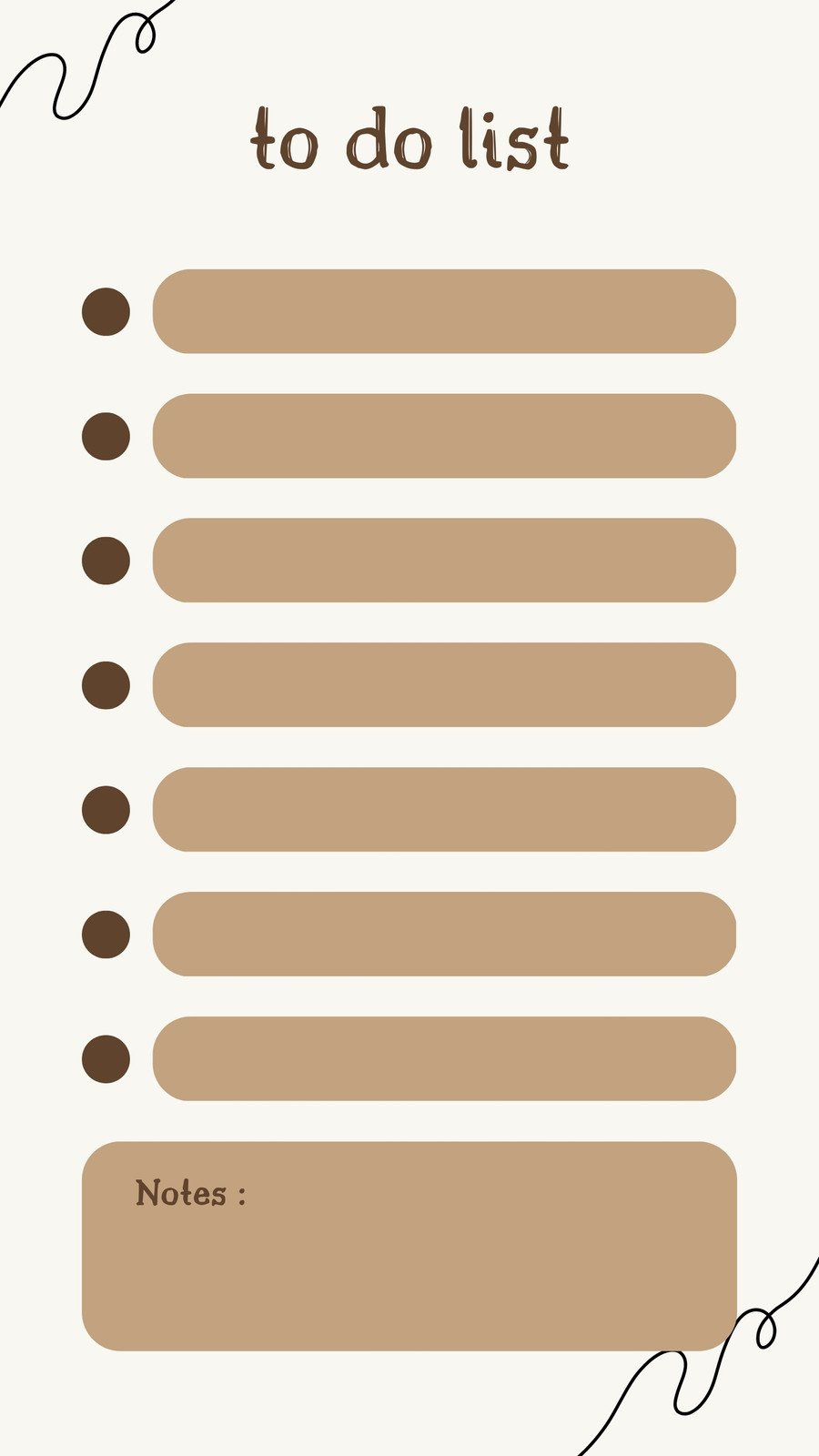
Once the design feels complete, click “Share” and choose “Download”. Opt for PDF for a universal file that preserves layout across devices, or PNG if you prefer individual pages for social‑media teasers. Upload the file to cloud storage services like Google Drive or Dropbox, embed it in a Notion workspace, or email it to collaborators. Because the file is vector‑based, you can also resize it for tablet screens without losing quality, allowing you to use the planner on phones, laptops, or large monitors seamlessly.
When you want a planner that moves with you across devices, Canva offers a surprisingly powerful set of tools that let you design, customize, and share a digital organizer without needing any coding skills. If you’ve ever asked yourself how do you create a digital planner in canva, the short answer is: start with a blank canvas, choose a template that resonates with your workflow, and then layer in the exact elements you need— calendars, to‑do lists, habit trackers, and more. The platform’s drag‑and‑drop interface, alignment guides, and brand‑kit features make it possible to produce a professional‑looking planner in minutes, and the result can be exported as a PDF or PNG for universal access.
Outline your planner’s structure
Begin by sketching the overall flow of your planning system. Typical sections include a yearly overview, monthly calendars, weekly spreads, daily task lists, habit trackers, and project dashboards. Write each component on a separate sticky note or in a simple list, then map those items to individual slides in Canva. This step eliminates guesswork later, ensures every page has a purpose, and makes it easy to rearrange sections until the hierarchy feels intuitive.
Design pages with Canva templates
Canva’s template library contains hundreds of ready‑made planner designs, from minimalist grids to vibrant illustrated layouts. Select a template that matches your aesthetic, then replace placeholder text with your own headings and sub‑headings. Use the built‑in grid and alignment guides to keep check‑boxes, progress bars, and icon rows evenly spaced. If you need a specific layout not offered, start from a blank page, add shapes, and lock elements in place—this gives you total control over spacing, hierarchy, and visual balance.
Customize colors and fonts
Visual cohesion starts with a limited color palette and a maximum of two fonts. Pull colors from a mood board or a favorite brand kit using Canva’s color picker, then apply them consistently to headings, borders, and background blocks. Choose a clean sans‑serif for body text to ensure readability, and pair it with a decorative script for section titles to add personality. Adjust contrast carefully; high contrast improves accessibility and makes printed or screen‑read versions easier on the eyes.
Export and share your planner
Once the design feels complete, click “Share” and choose “Download”. Opt for PDF for a universal file that preserves layout across devices, or PNG if you prefer individual pages for social‑media teasers. Upload the file to cloud storage services like Google Drive or Dropbox, embed it in a Notion workspace, or email it to collaborators. Because the file is vector‑based, you can also resize it for tablet screens without losing quality, allowing you to use the planner on phones, laptops, or large monitors seamlessly.
Free Digital To Do List Templates | 24 PDF Downloads For GoodNotes

Free Digital To Do List Templates | 24 PDF Downloads for GoodNotes ...
You Can Do It Poster

You Can Do It Poster
How To Create A Daily To-Do List For The Busy Working Mom

How To Create A Daily To-Do List For The Busy Working Mom