If you’ve ever felt overwhelmed by the jumble of social media posts, blog ideas, and design tasks, Canva’s Content Planner can be the calm in the storm. This built‑in calendar lets you schedule posts, assign tasks, and see your whole content strategy at a glance—all without leaving the design platform you already love. Below, we walk through the essential steps, illustrate the planner’s biggest benefits, and give you a clear recommendation for getting started today.
Streamline Your Publishing Schedule in Minutes
Start by opening the Content Planner tab on the left sidebar. Click “Create schedule,” then choose the type of content you’ll be publishing—Instagram post, Facebook carousel, YouTube thumbnail, etc. Canva automatically suggests optimal posting times based on platform trends, but you can customize the date and hour to match your audience’s peak activity. Once saved, the piece appears as a color‑coded card on the calendar, making it easy to spot gaps or overlapping posts.
Design Directly Within the Planner
One of Canva’s biggest advantages is the ability to jump straight from the calendar to the design canvas. When you click a scheduled card, the editor opens with the exact dimensions you selected, pre‑filled with any brand kit colors or fonts you’ve set. This eliminates the “download‑then‑upload” loop that plagues many other tools. For example, if you plan a weekly Instagram quote, the planner will open a square canvas ready for your text, letting you tweak the layout in seconds before the scheduled publish time.
Collaborate Without Email Chains
If you work with a team—perhaps a small business owner and a freelance designer—use the “Add team member” button on each card. Assign roles such as “Designer,” “Copywriter,” or “Approver.” Team members receive in‑app notifications, can leave comments, and approve or reject drafts directly on the card. This reduces back‑and‑forth emails and keeps the entire workflow visible on a single screen.
Track Performance and Iterate Quickly
After a post goes live, Canva pulls basic engagement metrics (likes, shares, comments) into the planner view. Hover over the post to see a quick badge, then click to view a more detailed analytics panel. By comparing performance across different days and content types, you can identify patterns—like a higher click‑through rate for videos posted on Thursday evenings—and adjust your future schedule accordingly.
Integrate with Your Existing Tools
For users who already rely on social media management platforms, Canva offers seamless integration with Facebook, Instagram, LinkedIn, and Twitter. Connect your accounts in the Settings menu, then toggle “Auto‑publish” for any scheduled card. If you prefer a manual approach, simply export the design and use your preferred scheduler; the planner still serves as a central hub for brainstorming and visual creation.
Start Simple, Scale Up
When you’re new to the planner, begin with a modest batch—perhaps three posts per week. Use the calendar view to block out “Content Creation,” “Review,” and “Publish” slots, treating each as a mini‑project. As you grow comfortable, expand to monthly themes, content series, or even a full editorial calendar. The key is to let the planner’s visual cues guide your workflow rather than trying to fit a rigid process onto the tool.
Recommendation: Set up a one‑week test run by creating a single content piece for each major platform you use. Schedule them, assign a reviewer, and monitor the built‑in analytics. Within a few days you’ll see how the Content Planner removes friction, keeps your brand consistent, and frees up mental space for creativity. Once the test succeeds, roll the system out to your broader marketing plan and watch your productivity soar.
If you’ve ever felt overwhelmed by the jumble of social media posts, blog ideas, and design tasks, Canva’s Content Planner can be the calm in the storm. This built‑in calendar lets you schedule posts, assign tasks, and see your whole content strategy at a glance—all without leaving the design platform you already love. Below, we walk through the essential steps, illustrate the planner’s biggest benefits, and give you a clear recommendation for getting started today.
Streamline Your Publishing Schedule in Minutes
Start by opening the Content Planner tab on the left sidebar. Click “Create schedule,” then choose the type of content you’ll be publishing—Instagram post, Facebook carousel, YouTube thumbnail, etc. Canva automatically suggests optimal posting times based on platform trends, but you can customize the date and hour to match your audience’s peak activity. Once saved, the piece appears as a color‑coded card on the calendar, making it easy to spot gaps or overlapping posts.
Design Directly Within the Planner
One of Canva’s biggest advantages is the ability to jump straight from the calendar to the design canvas. When you click a scheduled card, the editor opens with the exact dimensions you selected, pre‑filled with any brand kit colors or fonts you’ve set. This eliminates the “download‑then‑upload” loop that plagues many other tools. For example, if you plan a weekly Instagram quote, the planner will open a square canvas ready for your text, letting you tweak the layout in seconds before the scheduled publish time.
Collaborate Without Email Chains
If you work with a team—perhaps a small business owner and a freelance designer—use the “Add team member” button on each card. Assign roles such as “Designer,” “Copywriter,” or “Approver.” Team members receive in‑app notifications, can leave comments, and approve or reject drafts directly on the card. This reduces back‑and‑forth emails and keeps the entire workflow visible on a single screen.
Track Performance and Iterate Quickly
After a post goes live, Canva pulls basic engagement metrics (likes, shares, comments) into the planner view. Hover over the post to see a quick badge, then click to view a more detailed analytics panel. By comparing performance across different days and content types, you can identify patterns—like a higher click‑through rate for videos posted on Thursday evenings—and adjust your future schedule accordingly.
Integrate with Your Existing Tools
For users who already rely on social media management platforms, Canva offers seamless integration with Facebook, Instagram, LinkedIn, and Twitter. Connect your accounts in the Settings menu, then toggle “Auto‑publish” for any scheduled card. If you prefer a manual approach, simply export the design and use your preferred scheduler; the planner still serves as a central hub for brainstorming and visual creation.
Start Simple, Scale Up
When you’re new to the planner, begin with a modest batch—perhaps three posts per week. Use the calendar view to block out “Content Creation,” “Review,” and “Publish” slots, treating each as a mini‑project. As you grow comfortable, expand to monthly themes, content series, or even a full editorial calendar. The key is to let the planner’s visual cues guide your workflow rather than trying to fit a rigid process onto the tool.
Recommendation: Set up a one‑week test run by creating a single content piece for each major platform you use. Schedule them, assign a reviewer, and monitor the built‑in analytics. Within a few days you’ll see how the Content Planner removes friction, keeps your brand consistent, and frees up mental space for creativity. Once the test succeeds, roll the system out to your broader marketing plan and watch your productivity soar.
How Much Should Whippet Weigh? Whippet Weight Calculator.
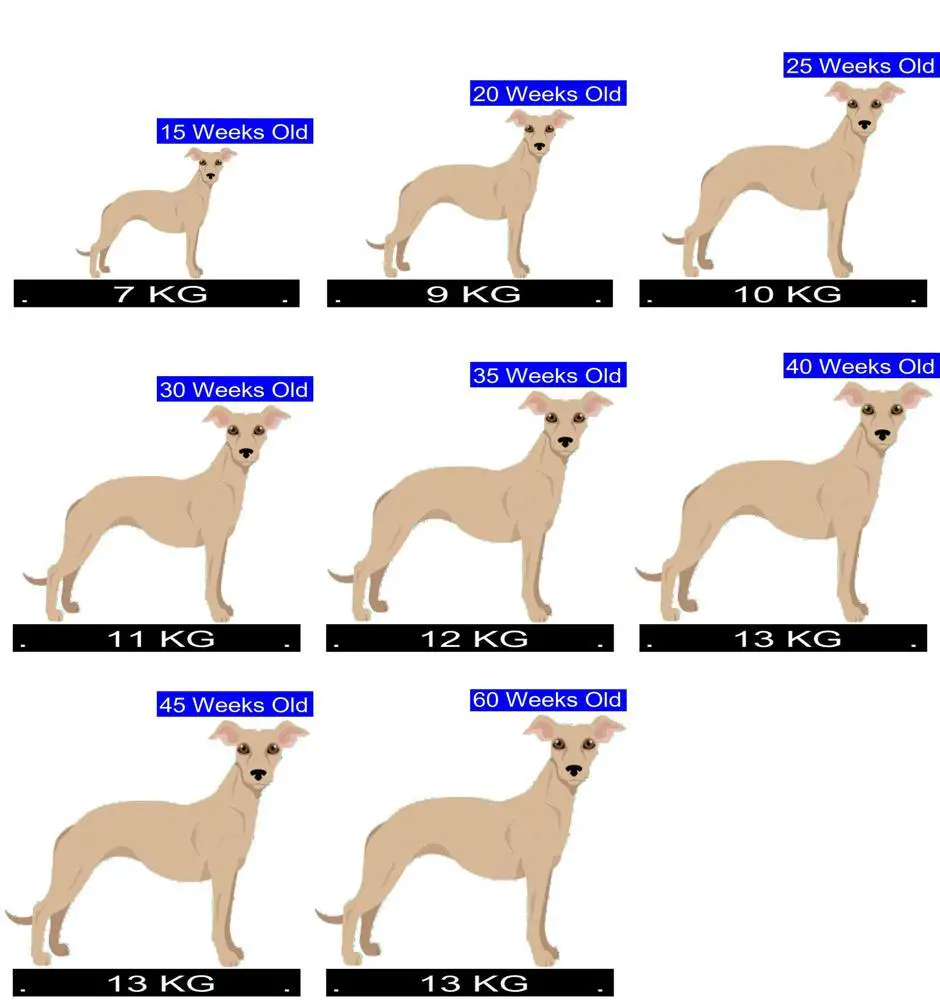
How Much Should Whippet Weigh? Whippet Weight Calculator.
(Rehomed) Flint - 4 Year Old Male Whippet Available For Adoption

(Rehomed) Flint - 4 year old male Whippet available for adoption
Whippet Size & Weight Chart - Pets Online

Whippet Size & Weight Chart - Pets Online
Tracker - 5 Year Old Male Whippet Available For Adoption

Tracker - 5 year old male Whippet available for adoption
Whippet Size & Weight Chart - Pets Online

Whippet Size & Weight Chart - Pets Online