When your daily to‑do list feels like a chaotic scramble, a digital planner can bring order without the weight of paper. By combining the flexibility of apps with the visual appeal of a traditional notebook, you can design a system that adapts to work, school, or personal goals. Below is a concise roadmap that walks you through the essential stages of building a functional digital planner from scratch.
Choose the Right Platform for Your Workflow
The first decision shapes every later step: will you use a note‑taking app like GoodNotes, a design‑focused tool such as Notion, or a specialized template in Microsoft OneNote? Each option offers distinct strengths—GoodNotes excels at handwriting, Notion shines in database linking, and OneNote integrates seamlessly with other Microsoft 365 services. Picking the environment that matches your preferred input method (pen, keyboard, or drag‑and‑drop) ensures you’ll actually use the planner daily.
Set Up Core Sections That Mirror Your Life
Break the planner into clear categories: Monthly Overview, Weekly Sprint, and Daily Log. Within each, include fields for appointments, tasks, priorities, and a brief habit tracker. For example, a weekly sprint can feature a “Top 3 Goals” box that nudges you to focus on the most impactful items. By mirroring real‑world rhythms, you reduce the mental load of translating paper habits into a digital format.
Design Visual Elements That Motivate
Even a functional planner benefits from a touch of personality. Use vector icons, subtle color blocks, or decorative separators to signal transitions between sections. Tools like Canva or the built‑in shape libraries in your chosen app let you craft reusable assets—once you’ve designed a header for “Goals,” you can drop it into every new page. This visual consistency reinforces habit formation while keeping the interface pleasant to use.
Integrate Automation for Seamless Updates
Leverage built‑in formulas or third‑party services (e.g., Zapier) to auto‑populate dates, pull tasks from a to‑do list, or sync events from your calendar. In Notion, a simple formula can calculate the number of days left in a month, while in OneNote you can embed Outlook appointments that update automatically. Automation eliminates the repetitive steps that often cause users to abandon digital planners.
Test, Refine, and Keep It Fresh

After assembling your first draft, spend a week using it in real scenarios. Note any friction points—perhaps the habit tracker feels too cramped or the weekly layout doesn’t accommodate overnight shifts. Return to the template, adjust spacing, add a new section, or swap fonts. Regular refinement turns a static file into a living system that grows alongside your needs.
Export or Share for Collaboration
Finally, decide how you’ll access the planner across devices. Exporting as a PDF allows you to view it on a tablet, while sharing a Notion page gives teammates visibility into project timelines. If you prefer a hybrid approach, keep a master file in the cloud (OneDrive, Google Drive) and sync changes automatically. The ability to collaborate or reference the planner anywhere reinforces its role as a central hub for your productivity.
When your daily to‑do list feels like a chaotic scramble, a digital planner can bring order without the weight of paper. By combining the flexibility of apps with the visual appeal of a traditional notebook, you can design a system that adapts to work, school, or personal goals. Below is a concise roadmap that walks you through the essential stages of building a functional digital planner from scratch.
Choose the Right Platform for Your Workflow
The first decision shapes every later step: will you use a note‑taking app like GoodNotes, a design‑focused tool such as Notion, or a specialized template in Microsoft OneNote? Each option offers distinct strengths—GoodNotes excels at handwriting, Notion shines in database linking, and OneNote integrates seamlessly with other Microsoft 365 services. Picking the environment that matches your preferred input method (pen, keyboard, or drag‑and‑drop) ensures you’ll actually use the planner daily.
Set Up Core Sections That Mirror Your Life
Break the planner into clear categories: Monthly Overview, Weekly Sprint, and Daily Log. Within each, include fields for appointments, tasks, priorities, and a brief habit tracker. For example, a weekly sprint can feature a “Top 3 Goals” box that nudges you to focus on the most impactful items. By mirroring real‑world rhythms, you reduce the mental load of translating paper habits into a digital format.
Design Visual Elements That Motivate
Even a functional planner benefits from a touch of personality. Use vector icons, subtle color blocks, or decorative separators to signal transitions between sections. Tools like Canva or the built‑in shape libraries in your chosen app let you craft reusable assets—once you’ve designed a header for “Goals,” you can drop it into every new page. This visual consistency reinforces habit formation while keeping the interface pleasant to use.
Integrate Automation for Seamless Updates
Leverage built‑in formulas or third‑party services (e.g., Zapier) to auto‑populate dates, pull tasks from a to‑do list, or sync events from your calendar. In Notion, a simple formula can calculate the number of days left in a month, while in OneNote you can embed Outlook appointments that update automatically. Automation eliminates the repetitive steps that often cause users to abandon digital planners.
Test, Refine, and Keep It Fresh
After assembling your first draft, spend a week using it in real scenarios. Note any friction points—perhaps the habit tracker feels too cramped or the weekly layout doesn’t accommodate overnight shifts. Return to the template, adjust spacing, add a new section, or swap fonts. Regular refinement turns a static file into a living system that grows alongside your needs.
Export or Share for Collaboration
Finally, decide how you’ll access the planner across devices. Exporting as a PDF allows you to view it on a tablet, while sharing a Notion page gives teammates visibility into project timelines. If you prefer a hybrid approach, keep a master file in the cloud (OneDrive, Google Drive) and sync changes automatically. The ability to collaborate or reference the planner anywhere reinforces its role as a central hub for your productivity.
Create Mod 101: An Introduction To Mechanical Power And Machinery June

Create Mod 101: An Introduction to Mechanical Power and Machinery June ...
Create

Create
How To Create Your Own Products - BusinessHatch

How to Create Your Own Products - BusinessHatch
Create Mod (1.19.2, 1.19.1) – Công Cụ Xây Dựng, Block Trang Trí | Viết
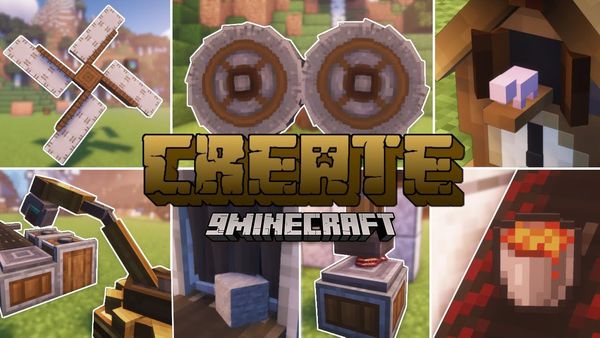
Create Mod (1.19.2, 1.19.1) – Công cụ xây dựng, block trang trí | Viết ...