When you’re juggling social posts, blog graphics, and occasional video snippets, a reliable content planner can feel like a lifesaver. Canva’s Content Planner promises an all‑in‑one calendar, collaboration tools, and the familiar drag‑and‑drop canvas you already know. But does it live up to the hype for a typical user in the United States? Below we break down the most common doubts, test the tool with real‑world scenarios, and hand you actionable steps to decide whether it deserves a spot in your workflow.
How intuitive is the Canva Content Planner for beginners?
The planner opens directly from Canva’s dashboard, presenting a clean month‑view calendar with colored blocks for each scheduled post. New users can click a date, choose a template, and add copy without leaving the canvas. Because the same design library fuels both static and animated assets, there’s no steep learning curve: the drag‑and‑drop workflow feels identical to creating a flyer or Instagram story. In practice, a first‑time user can set up a week’s worth of posts in under ten minutes—a speed that rivals dedicated scheduling apps.
Can the planner handle multi‑platform publishing?
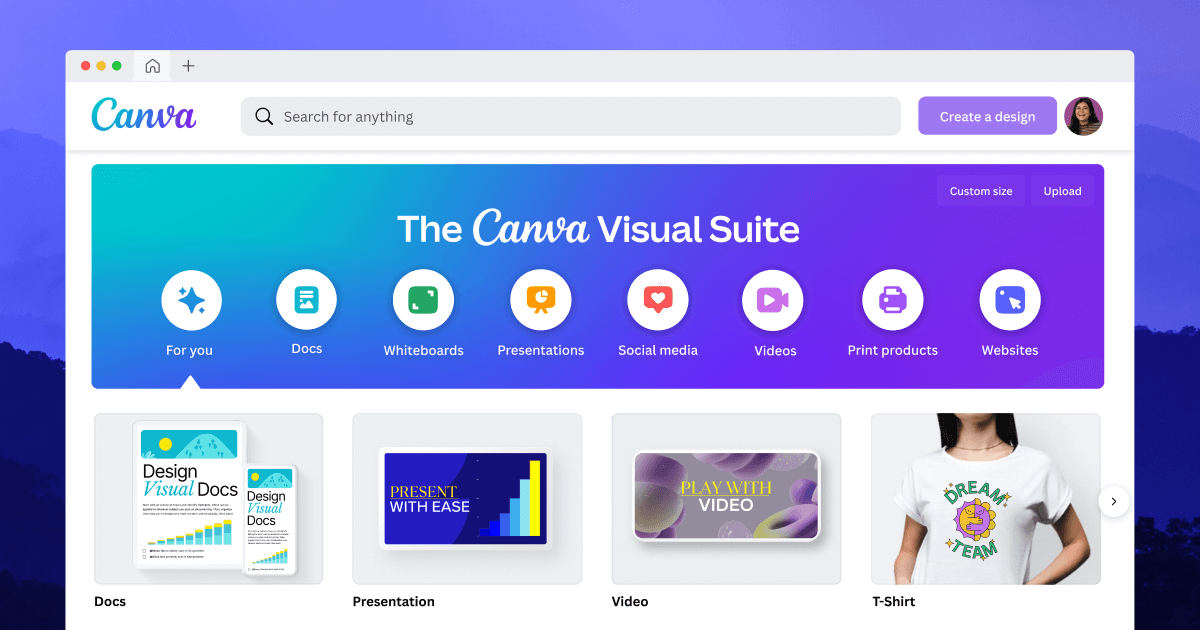
Yes. When you add a design to the calendar, a sidebar lets you pick the destination—Instagram feed, Facebook story, LinkedIn article, or even a TikTok video. Canva automatically resizes the canvas to the platform’s specifications, saving you the hassle of duplicate files. For a local bakery promoting a weekend sale, you could design one “fresh‑baked” graphic, then schedule it across three channels with a single click, ensuring brand consistency while cutting production time in half.
What collaboration features set it apart from free tools?
Team members can comment directly on a scheduled card, attach files, or suggest copy edits. Permissions are granular: you can grant “view‑only” rights to a client while allowing your social‑media assistant full editing privileges. The real advantage appears when you need rapid approvals—an Instagram carousel can be reviewed, tweaked, and approved within the same calendar view, eliminating endless email threads. For small businesses that rely on a handful of contributors, this built‑in workflow often replaces external project‑management software.
Does the planner integrate with existing marketing stacks?
Canva offers native connections to major platforms (Meta, Twitter, Pinterest) and Zapier triggers for custom automations. If your email newsletter lives in Mailchimp, you can set up a Zap that pulls a scheduled Canva design into a Mailchimp campaign draft. While the integration catalog isn’t as exhaustive as some enterprise schedulers, the most common channels are covered, and the Zapier bridge fills niche gaps without extra cost.
How does pricing affect the value proposition?
The Content Planner is included in Canva’s Pro subscription, which costs $12.99 per month for individuals in the U.S. For freelancers or small teams already paying for Pro’s premium templates and brand kits, the planner adds no extra fee. Compare that to a $30‑$50/month dedicated scheduler that lacks design tools; the combined Canva‑Pro experience often delivers a higher ROI, especially when you factor in the time saved on resizing and re‑creating assets.
What’s the final verdict for everyday users?
If you already use Canva for design, the Content Planner is a natural extension that streamlines publishing without forcing you to learn a new interface. Its strengths lie in simplicity, cross‑platform resizing, and collaborative comment threads—all wrapped in a price that feels reasonable for solo creators and micro‑businesses. The only drawback is a limited set of analytics; you’ll still need a separate dashboard to track post performance. Overall, for most U.S. users seeking a single place to design, schedule, and collaborate, the answer is clear: Canva’s Content Planner is good, and it can make your weekly content routine noticeably smoother.
When you’re juggling social posts, blog graphics, and occasional video snippets, a reliable content planner can feel like a lifesaver. Canva’s Content Planner promises an all‑in‑one calendar, collaboration tools, and the familiar drag‑and‑drop canvas you already know. But does it live up to the hype for a typical user in the United States? Below we break down the most common doubts, test the tool with real‑world scenarios, and hand you actionable steps to decide whether it deserves a spot in your workflow.
How intuitive is the Canva Content Planner for beginners?
The planner opens directly from Canva’s dashboard, presenting a clean month‑view calendar with colored blocks for each scheduled post. New users can click a date, choose a template, and add copy without leaving the canvas. Because the same design library fuels both static and animated assets, there’s no steep learning curve: the drag‑and‑drop workflow feels identical to creating a flyer or Instagram story. In practice, a first‑time user can set up a week’s worth of posts in under ten minutes—a speed that rivals dedicated scheduling apps.
Can the planner handle multi‑platform publishing?
Yes. When you add a design to the calendar, a sidebar lets you pick the destination—Instagram feed, Facebook story, LinkedIn article, or even a TikTok video. Canva automatically resizes the canvas to the platform’s specifications, saving you the hassle of duplicate files. For a local bakery promoting a weekend sale, you could design one “fresh‑baked” graphic, then schedule it across three channels with a single click, ensuring brand consistency while cutting production time in half.
What collaboration features set it apart from free tools?
Team members can comment directly on a scheduled card, attach files, or suggest copy edits. Permissions are granular: you can grant “view‑only” rights to a client while allowing your social‑media assistant full editing privileges. The real advantage appears when you need rapid approvals—an Instagram carousel can be reviewed, tweaked, and approved within the same calendar view, eliminating endless email threads. For small businesses that rely on a handful of contributors, this built‑in workflow often replaces external project‑management software.
Does the planner integrate with existing marketing stacks?
Canva offers native connections to major platforms (Meta, Twitter, Pinterest) and Zapier triggers for custom automations. If your email newsletter lives in Mailchimp, you can set up a Zap that pulls a scheduled Canva design into a Mailchimp campaign draft. While the integration catalog isn’t as exhaustive as some enterprise schedulers, the most common channels are covered, and the Zapier bridge fills niche gaps without extra cost.
How does pricing affect the value proposition?
The Content Planner is included in Canva’s Pro subscription, which costs $12.99 per month for individuals in the U.S. For freelancers or small teams already paying for Pro’s premium templates and brand kits, the planner adds no extra fee. Compare that to a $30‑$50/month dedicated scheduler that lacks design tools; the combined Canva‑Pro experience often delivers a higher ROI, especially when you factor in the time saved on resizing and re‑creating assets.
What’s the final verdict for everyday users?
If you already use Canva for design, the Content Planner is a natural extension that streamlines publishing without forcing you to learn a new interface. Its strengths lie in simplicity, cross‑platform resizing, and collaborative comment threads—all wrapped in a price that feels reasonable for solo creators and micro‑businesses. The only drawback is a limited set of analytics; you’ll still need a separate dashboard to track post performance. Overall, for most U.S. users seeking a single place to design, schedule, and collaborate, the answer is clear: Canva’s Content Planner is good, and it can make your weekly content routine noticeably smoother.
Free And Customizable Arabic Templates | Canva
Free and customizable Arabic templates | Canva
Canva PNGs For Free Download
Canva PNGs for Free Download
Machine Learning Engineer II At Microsoft – Top Jobs Today
Machine Learning Engineer II at Microsoft – Top Jobs Today