When your calendar looks like a battlefield, a well‑designed daily planner can be the calm you need. Canva makes it possible to customize a planner without graphic‑design training, letting you slot in tasks, habits, and deadlines in minutes. Below is a pragmatic roadmap that gets you from a blank canvas to a printable or digital planner you’ll actually use.
Sketch Your Planner Blueprint Before Opening Canva
Start by listing the sections that matter most: morning routine, top three priorities, time‑blocked work slots, meals, and a quick reflection area. Jot these on a scrap of paper or a notes app. Knowing the structure ahead of time prevents endless digging through Canva’s endless template library and keeps the design focused on functionality rather than filler.
Pick a Minimalist Template that Mirrors Your Workflow
Search “daily planner” in Canva’s template bar and filter by “Minimalist” or “Professional.” Look for clean grids, subtle lines, and enough white space to accommodate handwritten notes. When a template aligns with your sketch—say, a three‑column layout for “Schedule,” “Tasks,” and “Notes”—select it and open it in the editor. This shortcut saves hours you’d otherwise spend aligning elements from scratch.
Customize Fonts, Colors, and Layout for Instant Recognition
Consistency speeds up daily use. Choose one legible sans‑serif font for headings (e.g., Montserrat Bold) and a lighter version for body text. Apply your brand’s color palette—perhaps navy for headings and a muted teal for highlights—so the planner feels personal yet professional. Adjust column widths to match the time you actually spend on each activity; a 30‑minute block may need a narrower column than a 2‑hour deep‑work session.
Insert Functional Elements: Checkboxes, Icons, and Hyperlinks
Canva’s “Elements” tab offers ready‑made checkboxes and tiny icons (coffee cup, bell, heart) that turn a static page into an interactive tool. Drag a checkbox next to each task for a satisfying tick‑off experience. If you plan to use the planner digitally, add hyperlinks to your most‑visited Google Calendar or Trello board, turning the PDF into a hub for your existing workflow.
Export in the Right Format and Set Up a Simple Review Loop
For a printable planner, export as PDF Print at 300 dpi; this guarantees crisp lines when you print on standard 8.5 × 11‑inch paper. For a digital version, choose “PDF Standard” and enable “Flatten PDF” only if you don’t need editable fields. Schedule a brief weekly audit—perhaps every Sunday night—to tweak sections that felt cramped or superfluous, then re‑export the updated file. This iterative loop keeps the planner aligned with evolving priorities.
Leverage Canva’s Mobile App for On‑the‑Go Adjustments
Because busy professionals rarely sit at a desk all day, install Canva’s mobile app. Snap a photo of a handwritten note, add it to your planner as an image, or quickly revise a task list while commuting. The ability to edit on any device means your planner stays current, eliminating the temptation to abandon it for a scattered set of sticky notes.
When your calendar looks like a battlefield, a well‑designed daily planner can be the calm you need. Canva makes it possible to customize a planner without graphic‑design training, letting you slot in tasks, habits, and deadlines in minutes. Below is a pragmatic roadmap that gets you from a blank canvas to a printable or digital planner you’ll actually use.
Sketch Your Planner Blueprint Before Opening Canva
Start by listing the sections that matter most: morning routine, top three priorities, time‑blocked work slots, meals, and a quick reflection area. Jot these on a scrap of paper or a notes app. Knowing the structure ahead of time prevents endless digging through Canva’s endless template library and keeps the design focused on functionality rather than filler.
Pick a Minimalist Template that Mirrors Your Workflow
Search “daily planner” in Canva’s template bar and filter by “Minimalist” or “Professional.” Look for clean grids, subtle lines, and enough white space to accommodate handwritten notes. When a template aligns with your sketch—say, a three‑column layout for “Schedule,” “Tasks,” and “Notes”—select it and open it in the editor. This shortcut saves hours you’d otherwise spend aligning elements from scratch.
Customize Fonts, Colors, and Layout for Instant Recognition
Consistency speeds up daily use. Choose one legible sans‑serif font for headings (e.g., Montserrat Bold) and a lighter version for body text. Apply your brand’s color palette—perhaps navy for headings and a muted teal for highlights—so the planner feels personal yet professional. Adjust column widths to match the time you actually spend on each activity; a 30‑minute block may need a narrower column than a 2‑hour deep‑work session.
Insert Functional Elements: Checkboxes, Icons, and Hyperlinks
Canva’s “Elements” tab offers ready‑made checkboxes and tiny icons (coffee cup, bell, heart) that turn a static page into an interactive tool. Drag a checkbox next to each task for a satisfying tick‑off experience. If you plan to use the planner digitally, add hyperlinks to your most‑visited Google Calendar or Trello board, turning the PDF into a hub for your existing workflow.
Export in the Right Format and Set Up a Simple Review Loop
For a printable planner, export as PDF Print at 300 dpi; this guarantees crisp lines when you print on standard 8.5 × 11‑inch paper. For a digital version, choose “PDF Standard” and enable “Flatten PDF” only if you don’t need editable fields. Schedule a brief weekly audit—perhaps every Sunday night—to tweak sections that felt cramped or superfluous, then re‑export the updated file. This iterative loop keeps the planner aligned with evolving priorities.
Leverage Canva’s Mobile App for On‑the‑Go Adjustments
Because busy professionals rarely sit at a desk all day, install Canva’s mobile app. Snap a photo of a handwritten note, add it to your planner as an image, or quickly revise a task list while commuting. The ability to edit on any device means your planner stays current, eliminating the temptation to abandon it for a scattered set of sticky notes.
Broadway Party Editable Invitation, Theatre Theme Canva Template Evite
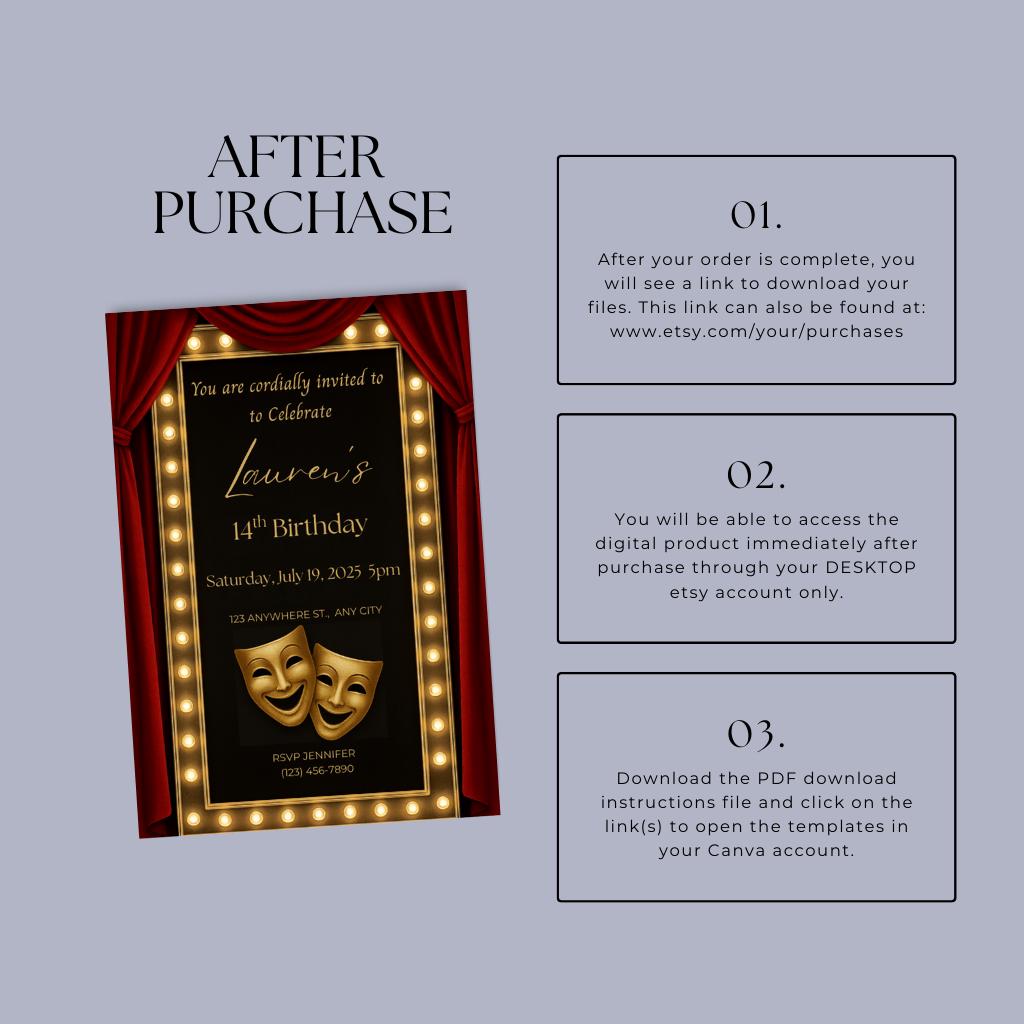
Broadway Party Editable Invitation, Theatre Theme Canva Template Evite ...
Broadway Party Editable Invitation, Theatre Theme Canva Template Evite
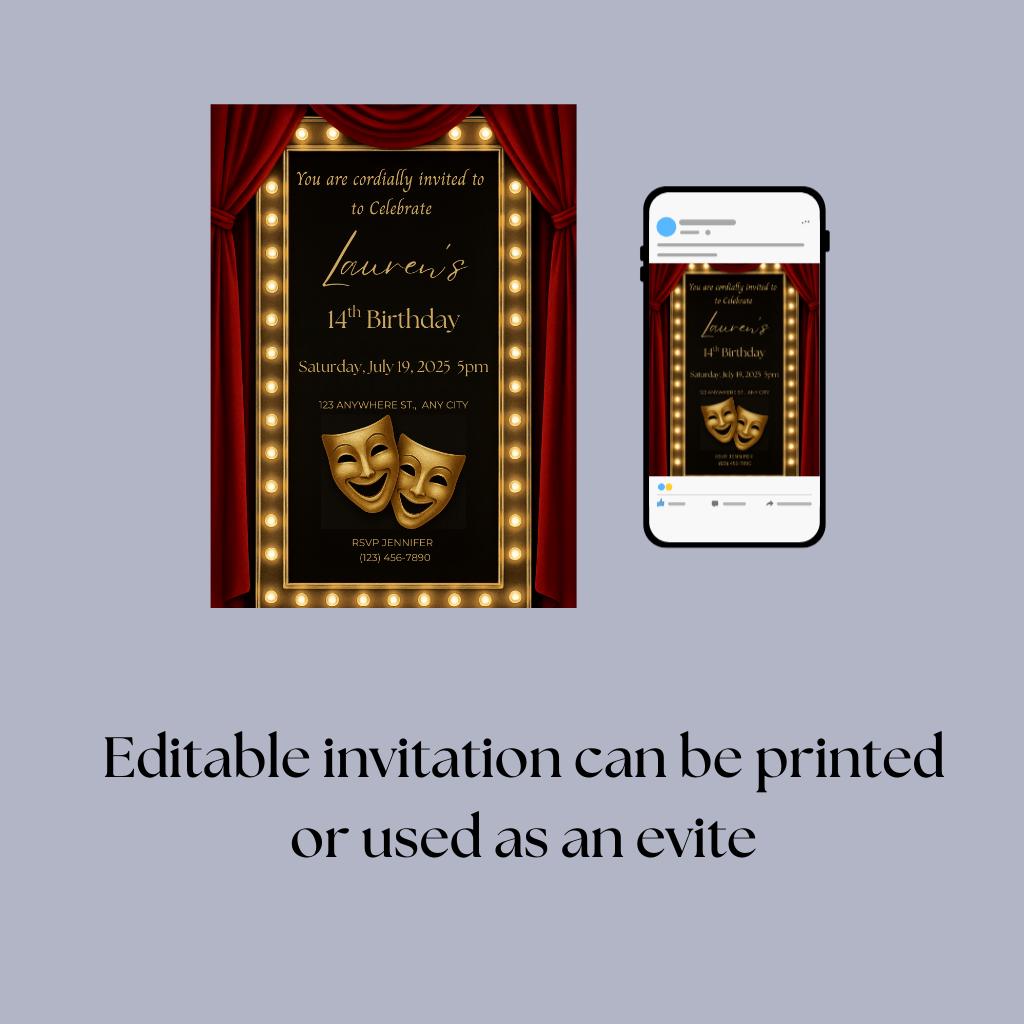
Broadway Party Editable Invitation, Theatre Theme Canva Template Evite ...
Broadway Party Editable Invitation, Theatre Theme Canva Template Evite

Broadway Party Editable Invitation, Theatre Theme Canva Template Evite ...