The era of carrying heavy, physical binders is rapidly giving way to sleek, digital organization. For those who have embraced tablets and styluses, the concept of a hyperlinked planner offers the best of both worlds: the tactile satisfaction of writing on a grid combined with the efficiency of digital navigation. Learning how to make a hyperlinked planner in Canva has become a trending skill for creators and students alike, allowing for a fully customized productivity system that can be sold or used personally. The process blends graphic design with basic interactive mechanics, resulting in a PDF that feels less like a static document and more like an app.
Why Are Digital Planners Gaining Popularity?
Digital planners have surged in popularity, largely due to the rise of note-taking applications like GoodNotes, Notability, and Notability. Unlike a traditional paper agenda, a digital planner allows users to duplicate pages infinitely, erase mistakes without a trace, and search for handwritten notes instantly. However, the defining feature that sets a high-quality planner apart is the hyperlinking. This functionality transforms a simple PDF into an interactive tool where a tap on the word "Monday" instantly jumps to that day’s schedule, bringing the speed and intuition of the web to the world of handwriting.
How Do You Structure the Core Pages?
Before diving into the technical linking, the design phase requires a strategic layout. In Canva, start by establishing your canvas size; A4 or US Letter are standard, though many creators prefer tablet-specific dimensions for an immersive experience. The foundation of your planner is the dashboard, which serves as the central hub. From here, you will design secondary pages for weekly spreads, daily logs, and goal-tracking sections. The key is consistency. By creating a uniform style for your headers and buttons, you ensure the user feels oriented, regardless of how deep they are into the document’s structure.
What Is the Secret to Effective Hyperlinking?
The magic happens when you connect these individual pages. To do this, you must first create navigation buttons—transparent shapes or icons—on your dashboard. Select the element you wish to turn into a button, locate the "Link" button in the editor's top right corner, and choose "Document Link" rather than a website URL. Canva will present a dropdown of the pages within your project. By selecting the target page, you create a clickable zone. For a user-friendly experience, it is crucial to link back; every secondary page, such as a weekly view, should have a "Home" button that navigates back to the main dashboard. This bi-directional linking prevents users from getting lost in their notes.
Why Does the Export Format Matter?
Designing the planner is only half the battle; exporting it correctly is the final, critical step. If you simply download your file as a standard image or a flattened PDF, your hyperlinks will be dead on arrival. To preserve the interactive elements, you must navigate to the Share menu, select "Download," and choose "PDF Standard" as the file type. This format ensures that the meta-data containing your link connections remains embedded in the file. Once downloaded, the PDF can be imported into any annotation app, where the touch-screen interaction will function exactly as you designed it.
Can You Monetize This Skill?
Once you master the workflow, the potential extends beyond personal organization. The demand for aesthetic, functional digital planners is a robust niche within the digital product market. Because hyperlinked planners are digital goods, they require no inventory and can be sold an infinite number of times. Whether you are a teacher looking to provide specialized resources for students or an entrepreneur seeking a passive income stream, the ability to build these documents in Canva is a valuable, modern competency that bridges the gap between graphic design and practical utility.
The era of carrying heavy, physical binders is rapidly giving way to sleek, digital organization. For those who have embraced tablets and styluses, the concept of a hyperlinked planner offers the best of both worlds: the tactile satisfaction of writing on a grid combined with the efficiency of digital navigation. Learning how to make a hyperlinked planner in Canva has become a trending skill for creators and students alike, allowing for a fully customized productivity system that can be sold or used personally. The process blends graphic design with basic interactive mechanics, resulting in a PDF that feels less like a static document and more like an app.
Why Are Digital Planners Gaining Popularity?
Digital planners have surged in popularity, largely due to the rise of note-taking applications like GoodNotes, Notability, and Notability. Unlike a traditional paper agenda, a digital planner allows users to duplicate pages infinitely, erase mistakes without a trace, and search for handwritten notes instantly. However, the defining feature that sets a high-quality planner apart is the hyperlinking. This functionality transforms a simple PDF into an interactive tool where a tap on the word "Monday" instantly jumps to that day’s schedule, bringing the speed and intuition of the web to the world of handwriting.
How Do You Structure the Core Pages?
Before diving into the technical linking, the design phase requires a strategic layout. In Canva, start by establishing your canvas size; A4 or US Letter are standard, though many creators prefer tablet-specific dimensions for an immersive experience. The foundation of your planner is the dashboard, which serves as the central hub. From here, you will design secondary pages for weekly spreads, daily logs, and goal-tracking sections. The key is consistency. By creating a uniform style for your headers and buttons, you ensure the user feels oriented, regardless of how deep they are into the document’s structure.
What Is the Secret to Effective Hyperlinking?
The magic happens when you connect these individual pages. To do this, you must first create navigation buttons—transparent shapes or icons—on your dashboard. Select the element you wish to turn into a button, locate the "Link" button in the editor's top right corner, and choose "Document Link" rather than a website URL. Canva will present a dropdown of the pages within your project. By selecting the target page, you create a clickable zone. For a user-friendly experience, it is crucial to link back; every secondary page, such as a weekly view, should have a "Home" button that navigates back to the main dashboard. This bi-directional linking prevents users from getting lost in their notes.
Why Does the Export Format Matter?
Designing the planner is only half the battle; exporting it correctly is the final, critical step. If you simply download your file as a standard image or a flattened PDF, your hyperlinks will be dead on arrival. To preserve the interactive elements, you must navigate to the Share menu, select "Download," and choose "PDF Standard" as the file type. This format ensures that the meta-data containing your link connections remains embedded in the file. Once downloaded, the PDF can be imported into any annotation app, where the touch-screen interaction will function exactly as you designed it.
Can You Monetize This Skill?
Once you master the workflow, the potential extends beyond personal organization. The demand for aesthetic, functional digital planners is a robust niche within the digital product market. Because hyperlinked planners are digital goods, they require no inventory and can be sold an infinite number of times. Whether you are a teacher looking to provide specialized resources for students or an entrepreneur seeking a passive income stream, the ability to build these documents in Canva is a valuable, modern competency that bridges the gap between graphic design and practical utility.
Scale Model Trebuchet Plans How To Build A Trebuchet (with Pictures)
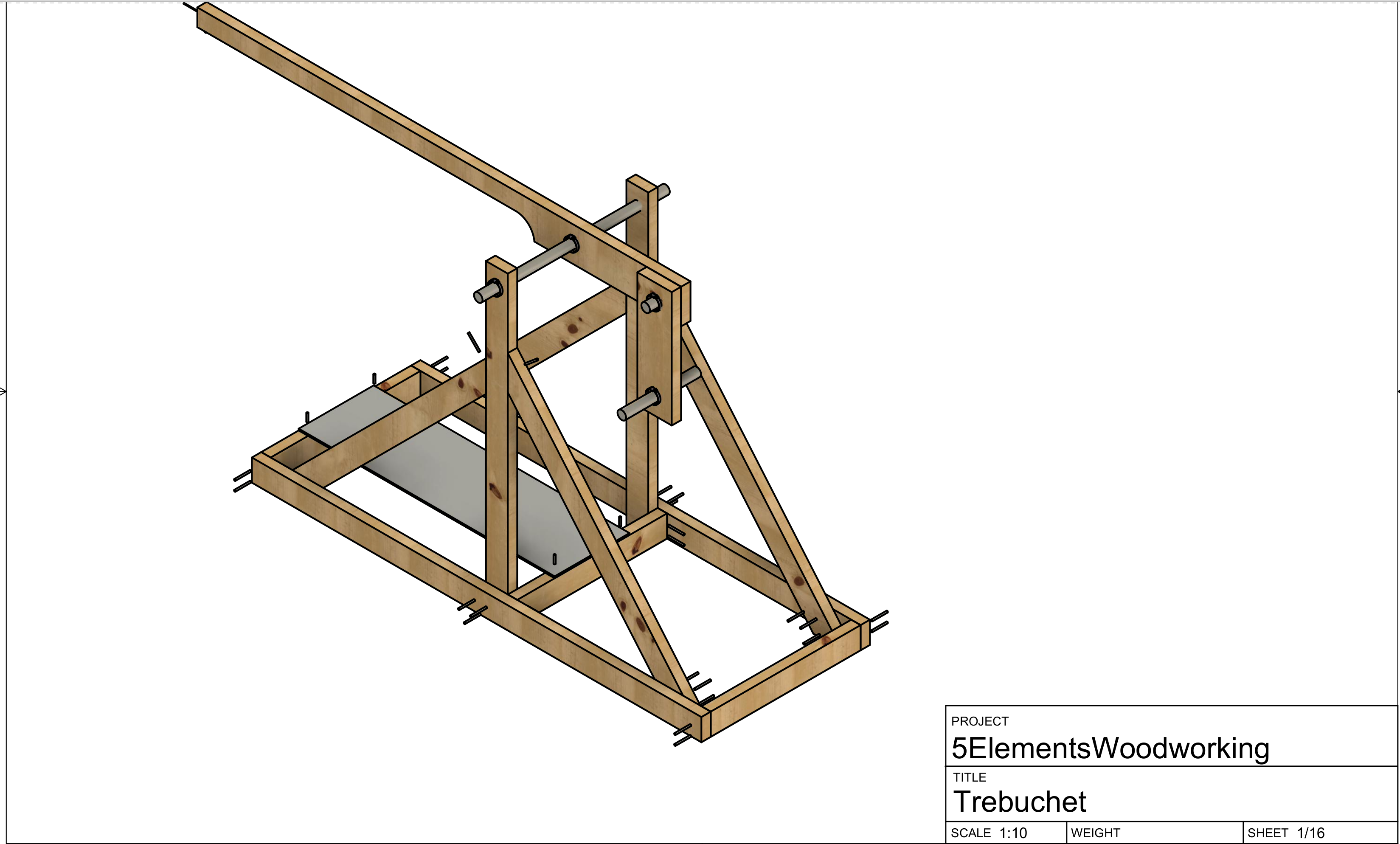
Scale Model Trebuchet Plans How To Build A Trebuchet (with Pictures)
Trebuchet Catapult Designs
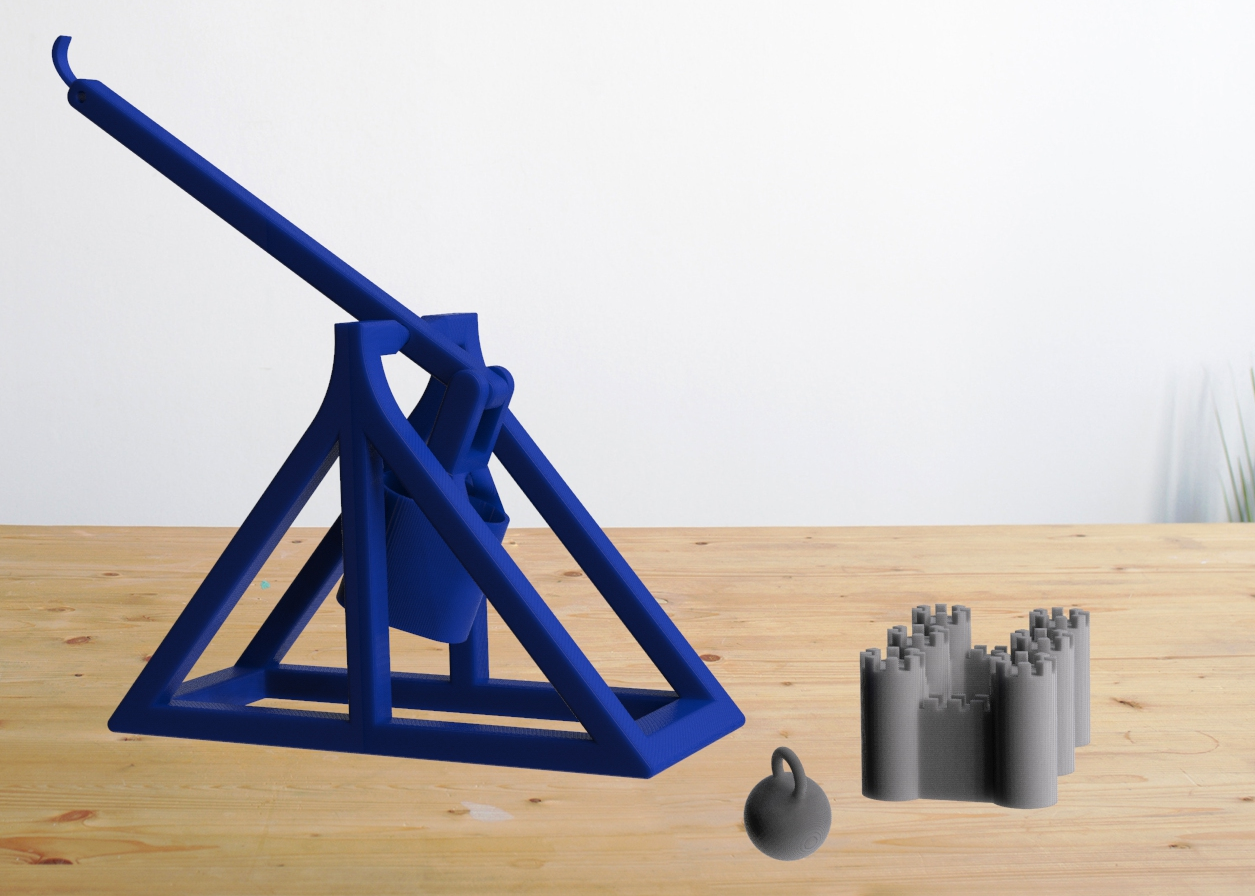
Trebuchet Catapult Designs
Building A Simple DIY Trebuchet
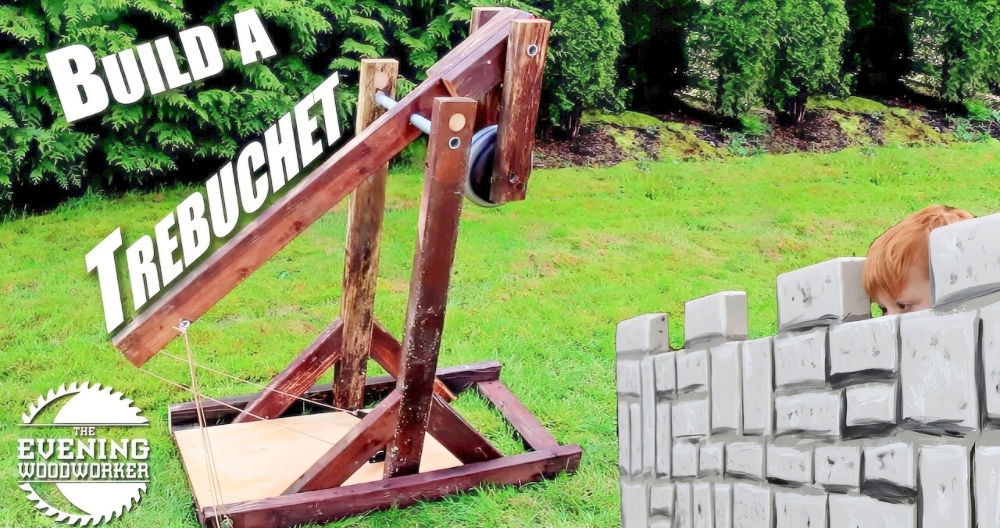
Building a Simple DIY Trebuchet